Jump Cut Editing for Talking-Head Videos
Jump cut editing keeps talking-head videos tight and energetic. Learn to cut pauses, mask edits with b-roll and zooms, and know when cuts help or hurt.
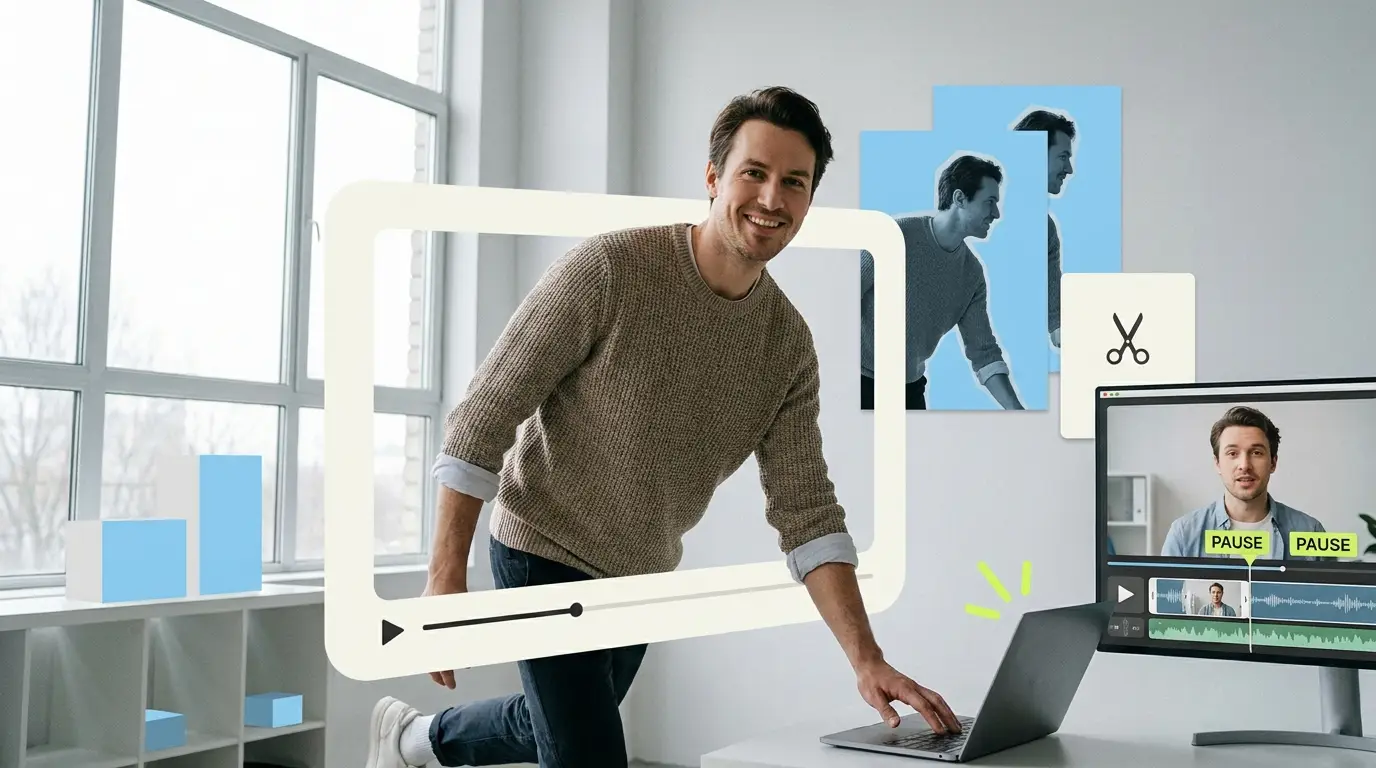
Jump cut editing is the single most common technique behind almost every creator video you watch, and most people never notice it happening. When a person talks straight to camera and the footage feels fast, clean, and full of energy, that energy is usually built in the edit. The raw recording was slower, full of pauses, restarts, and dead air. Jump cut editing is the process of removing those gaps so the final video carries momentum from the first second to the last.
This guide explains what a jump cut actually is, how to use it well for talking-head and creator content, how to hide the visible seams, and when cutting hard does more harm than good. The goal is a practical workflow you can repeat on every video, not theory.
What a jump cut actually is
A jump cut is an edit between two shots of the same subject, from roughly the same angle, where a chunk of time has been removed. Because the camera position barely changes, the subject appears to "jump" slightly from one position to the next. That small visual hop is the trade you make for cutting out the boring part.
In classic film grammar, jump cuts were treated as a mistake. Editors went out of their way to hide them. In creator video, the rules flipped. Audiences now expect tight pacing, and a visible jump reads as honest and fast rather than sloppy. A 12-minute raw recording often becomes a 7-minute final cut almost entirely through jump cuts.
The technique matters most for one specific format: a single person talking to the camera. That includes YouTube explainers, course lessons, founder updates, podcast clips, and short-form vertical content. If you want a deeper look at the full workflow for this format, our guide to talking-head video editing covers the end-to-end process.
Why creators rely on it so heavily
Video is now the default way buyers research and decide. According to Wyzowl, 91% of businesses use video as a marketing tool, and 82% say a video convinced them to buy a product or service. That demand means more talking-head content than ever, and most of it competes for attention in the first few seconds. For more on how video shapes buying decisions, see HubSpot's video marketing statistics.
Raw talking-head footage is slow. People pause to think, say "um," lose their place, and restart sentences. If you leave all of that in, viewers feel the drag and click away. Jump cut editing fixes the pacing problem without forcing anyone to deliver a perfect single take. You record naturally, then tighten in post.
Retention is the payoff. Tighter pacing keeps people watching longer, and watch time is the metric platforms reward most. We break down the relationship between pacing and retention in our piece on YouTube watch time and audience retention.
The core workflow: cutting for energy
Good jump cut editing follows a repeatable order. Once you internalize it, a 20-minute recording can be cut in a couple of focused passes.
Pass one: remove the obvious dead air
Start by cutting the silences, the long breaths, the "let me start that again" moments, and any section where the speaker clearly lost the thread. Do not worry about polish yet. You are just removing the parts that should never appear in the final video. Working off the audio waveform makes this fast, because silence shows up as flat lines you can cut on sight.
Pass two: tighten the gaps between words

This is where energy gets built. After the obvious junk is gone, go through and trim the small pauses between sentences and phrases. People naturally leave half a second of space after each thought. Removing most of that space, while leaving a little for breathing room, makes the speaker sound sharper and more confident than they did live.
The mistake here is overcutting. If you remove every single gap, the speaker sounds breathless and robotic, and the video becomes exhausting to watch. Leave natural beats around important points so the viewer has a moment to absorb them.
Pass three: cut filler words

"Um," "uh," "like," "you know," and false starts are the next layer. Cutting these cleanly is the difference between an amateur and a professional edit. The trick is to cut on the breath or the start of the next word so the audio does not click or pop. Match the cut to a moment where the mouth is closed or transitioning, and the jump reads as natural.
Masking cuts so they feel intentional
A visible jump every few seconds can become distracting, especially on a longer video. The fix is to vary how you handle each cut. Professional editors rarely use the same masking technique twice in a row. Here are the main tools.
B-roll

The cleanest way to hide a jump is to cover it with relevant footage. While the audio continues, the picture cuts to a screen recording, a product shot, a chart, or stock footage that supports the point. The viewer never sees the jump because they are looking at something else. B-roll also makes the video feel more produced and gives the eyes a rest from the talking head.
Punch-ins and zooms
A punch-in is a cut to a slightly tighter framing of the same shot. Instead of the subject hopping in place, the cut becomes a deliberate change in scale that feels like a second camera. Alternating between a wide and a tight framing across cuts hides the jump and adds visual rhythm. You can create this with a single camera by cropping into the 4K footage in post, which keeps the punch-in sharp on a 1080p export.
Reframes and reaction beats
Slightly shifting the subject's position in the frame, or briefly cutting to a reaction or an on-screen graphic, breaks the repetition. The point is variety. When every cut is handled the same way, the pattern becomes obvious. When you rotate between b-roll, punch-ins, and clean jumps, the editing disappears and only the energy remains.
For short-form vertical content, fast cutting paired with motion graphics and captions is the norm, and the masking techniques shift slightly. Our short-form video editing guide covers how pacing changes on TikTok, Reels, and Shorts.
When jump cuts hurt instead of help
Jump cut editing is a tool, not a religion. Used badly, it works against the video.
Cutting too aggressively destroys emotional moments. If a founder is telling a serious story, a customer is giving heartfelt feedback, or a teacher is explaining a hard concept, the pauses carry meaning. Slicing them out makes the moment feel rushed and insincere. Let those sections breathe.
Overcutting also creates audio artifacts. Every hard cut on dialogue risks a click, a clipped word, or a jarring change in room tone. If your cuts are landing every two seconds and the audio sounds choppy, you have gone too far. The viewer may not consciously notice the cuts, but they feel the fatigue.
Finally, jump cuts can hide a structural problem instead of fixing it. If the underlying script rambles, no amount of tightening will save it. Sometimes the right move is to cut whole sections or reorder ideas, not just trim the gaps. Pacing is about the shape of the whole video, not only the speed of the cuts.
Tools for jump cut editing
The software you choose depends on volume and skill level.
For full control, Adobe Premiere Pro, DaVinci Resolve, and Final Cut Pro are the standards. Resolve has a strong free version that handles everything described in this guide. These let you work frame by frame, layer b-roll, and build punch-ins precisely.
For speed, a wave of AI-assisted tools now detects silences and filler words automatically and removes them in one click. Descript, in particular, lets you edit video by editing a text transcript, which makes the first two passes extremely fast. These tools are excellent for the rough cut, but they still need a human pass for the nuance: knowing which pauses to keep, where to add b-roll, and when a cut hurts the message.
The reality is that good jump cut editing is time-consuming. A polished 10-minute talking-head video can take a skilled editor several hours once b-roll, punch-ins, and color are included. That time cost is why many creators and businesses eventually stop editing themselves.
What Pixel8 Production offers
Editing your own talking-head videos works until volume catches up with you. At that point the math changes. Hiring an in-house editor costs $55,000 to $75,000 per year (ZipRecruiter), according to ZipRecruiter salary data, before benefits and software. Freelancers run $75 to $250 per video with variable quality and availability. Agencies charge $500 to $5,000 or more per project. The wider market for editing services sits anywhere from $500 to $3,000 depending on scope.
Pixel8 Production is a done-for-you B2B video editing subscription priced at $2,000 to $3,200 per month. You get a dedicated editor who learns your style, your pacing preferences, and your brand, plus a 48-hour turnaround on most projects. You send the raw footage, and we handle the jump cuts, the b-roll, the punch-ins, the captions, and the color.
Because the same editor handles your videos every week, the jump cut style stays consistent across your whole library instead of changing with every freelancer. If you are comparing your options, our breakdown of the best video editing services compared lays out the trade-offs, and our done-for-you video editing page explains how the subscription works in practice.
Bottom line
Jump cut editing is the engine behind almost every tight, high-energy talking-head video online. The technique is simple to describe, remove the dead air and tighten the gaps, but doing it well takes judgment about which pauses to keep, how to mask each cut, and when fast pacing hurts the message. Master the three-pass workflow, vary your masking with b-roll and punch-ins, and respect the moments that need to breathe. If editing every video by hand becomes a bottleneck, a dedicated editor who knows your style can keep the quality and pacing consistent across everything you publish.
Where to go from here
Frequently asked questions
What is jump cut editing in simple terms?
Jump cut editing removes chunks of time between two shots of the same subject, usually from the same angle. It makes a talking-head video feel faster and more energetic by cutting out pauses, filler words, and restarts. The subject appears to "jump" slightly at each cut, which is normal and expected in creator video.
Are jump cuts bad for video quality?
Not at all. Jump cuts were once considered a mistake in film, but they are now standard for online talking-head content. They only become a problem when overused, which creates choppy audio and a fatiguing rhythm. Used with variety and good masking, they look intentional and professional.
How do I hide jump cuts so they are less noticeable?
Cover them with b-roll, use punch-ins to slightly change the framing, or cut between a wide and a tight shot. Rotating between these techniques keeps any single approach from becoming obvious. The goal is variety so the editing disappears and only the pacing remains.
How tight should I cut a talking-head video?
Remove dead air, filler words, and false starts, but leave small natural pauses around important points. Cutting every single gap makes the speaker sound breathless and robotic. The right tightness keeps energy high while still letting the viewer absorb the key ideas.
What software is best for jump cut editing?
DaVinci Resolve, Adobe Premiere Pro, and Final Cut Pro give you full manual control. Descript and other AI tools speed up the first pass by detecting silences and filler words automatically. Many editors use an AI tool for the rough cut, then finish by hand for nuance and b-roll.
When should I avoid jump cuts?
Avoid aggressive cutting during emotional or serious moments, such as a heartfelt customer story or a difficult explanation. The pauses in those moments carry meaning, and removing them feels rushed and insincere. Let important sections breathe rather than forcing the same fast pacing everywhere.
How long does it take to edit a talking-head video with jump cuts?
A polished 10-minute video can take a skilled editor several hours once you add b-roll, punch-ins, captions, and color. AI tools can cut that significantly for the rough pass, but human refinement still takes time. This time cost is why many creators outsource editing once their volume grows.

Prakhar Mehta
Pixel8 is a done-for-you video editing subscription, giving SaaS companies, agencies, and founders a dedicated editing team with 48-hour turnaround.
Ready to stop doing this yourself?
Get a dedicated video editing team. 48-hour turnaround, unlimited revisions, month-to-month.