Green Screen Video Editing: A Business Guide
A guide to green screen video editing for business: when to use chroma key, shooting tips for clean keys, the editing workflow, and mistakes to avoid.
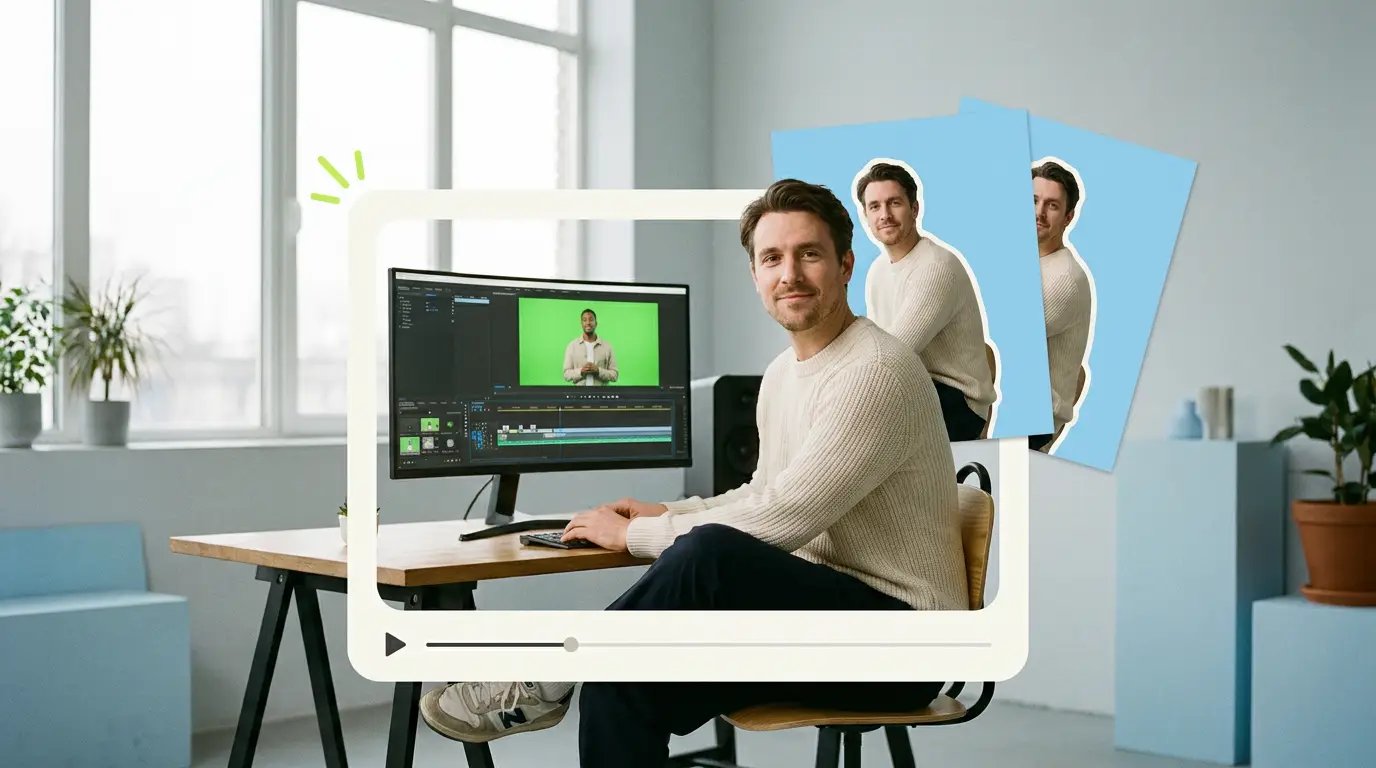
Green screen video editing, also called chroma key, lets you replace a solid colored background with any image or video you want. For a business, that means a presenter can appear in front of a product shot, a data visualization, a branded set, or a location you never actually filmed in. Done well, green screen video editing looks clean and professional. Done badly, it looks cheap and distracting, with fuzzy edges and a green glow around the subject. This guide explains when green screen makes sense, how to shoot footage that keys cleanly, how the editing process actually works, and when to hand the job to a professional editor.
Video is no longer optional for most companies. According to Wyzowl, 91% of businesses use video as a marketing tool, and 82% of people say a video convinced them to buy a product or service. Green screen is one of the most flexible techniques for producing that video at scale, because it separates where you shoot from what the audience sees.
What green screen video editing actually is
Chroma key works on a simple principle. You film your subject against a uniform color, almost always bright green or blue, then the editing software identifies that exact color range and makes it transparent. Whatever you put on the layer behind the subject shows through the now-empty space.
Green is the standard choice for two reasons. It is far from human skin tones, so the software rarely confuses your presenter with the background, and modern camera sensors capture green with more detail than red or blue, which gives the editor more information to work with. Blue is still used occasionally, usually when a subject wears green clothing or when the shot needs to match film conventions.
The transparency itself is created by a key, a digital mask that says "keep these pixels, drop those." The quality of that mask is everything. A good key has crisp edges and holds fine detail like hair. A poor key leaves halos, jagged outlines, or patches of background bleeding through.
When green screen makes sense for business

Green screen is not the right tool for every video, but it solves specific problems well.
It is ideal when you want one presenter to appear in many different settings without traveling or building sets. A training series, for example, can put an instructor in front of slides, charts, and branded backgrounds, all shot in a single session. It also works when you want full control over the background, such as placing a spokesperson in front of a perfectly clean studio look that you can color match to your brand.
Product explainers benefit too. You can composite a presenter alongside a floating product render, animated callouts, or a screen recording of your software. This is closely related to the kind of work covered in our guide to talking head video editing, where a single speaker carries the message and the background supports it.
Green screen is the wrong choice when the natural environment is part of the story. A customer testimonial filmed in a real workshop, a behind-the-scenes piece, or a location shoot that sells authenticity should usually keep its real background. Faking those settings tends to undercut the trust you are trying to build.
Shooting tips that make keying clean
Most green screen problems are created on set, not in editing. No amount of software can fully fix footage that was shot poorly. Get these things right and the editing becomes fast and predictable.
Light the background evenly
The single biggest factor in a clean key is even lighting on the green screen itself. The goal is a flat, consistent green with no bright hotspots and no dark shadows. Use two lights aimed at the screen from opposite sides at roughly 45 degrees, and check that the brightness looks uniform across the whole surface. Uneven green forces the editor to widen the key range, which eats into the subject's edges.
Separate the subject from the screen
Keep your presenter several feet in front of the green screen, ideally six to eight feet or more. Distance does two things. It prevents shadows from falling on the background, and it reduces spill, the green light that bounces off the screen and tints the edges of your subject. A subject standing right against the screen is almost impossible to key cleanly.
Control green spill
Spill is the faint green tint that creeps onto hair, shoulders, and clothing. Distance helps, and so does adding a backlight or rim light on the subject. A light placed behind and above the presenter creates a clean separation line that the key can grab onto. Avoid shiny or reflective clothing, and obviously avoid anything green on the subject, since it will become transparent along with the background.
Light the subject to match the future background
This is the step amateurs skip. Your presenter should be lit to match the scene you plan to drop them into. If the background is a bright outdoor setting, the subject needs bright, cool light. If it is a warm office, the subject needs warmer light. Mismatched lighting is the giveaway that instantly tells viewers something is composited.
Shoot at the highest quality you reasonably can
Higher resolution and better color information give the editor more to work with. If your camera offers it, shoot in a format with less compression. Heavy compression smears the fine detail at the edge of the subject, which is exactly where the key needs precision.
The green screen editing process, step by step

Once you have good footage, the editing follows a fairly consistent sequence. Understanding it helps you brief an editor and judge the result.
1. Apply the key
The editor adds a chroma key effect to the footage and selects the green color to remove. Software like Premiere Pro, Final Cut Pro, DaVinci Resolve, and After Effects all handle this, with After Effects offering the most precise tools for difficult shots. The first pass removes the bulk of the green and reveals the layer behind.
2. Refine the edges
This is where quality is won or lost. The editor adjusts the key tolerance so the background disappears completely without eating into the subject. They then refine the matte to keep fine detail like flyaway hair while removing any leftover fringe. Tight, natural edges are the mark of professional work.
3. Suppress the spill
Even well-shot footage usually has some green tint at the edges. A spill suppression tool neutralizes that color so the subject's edges look natural against the new background instead of glowing green.
4. Add and grade the background
The new background goes on the layer beneath the keyed subject. The editor then color grades both layers so they belong together, matching brightness, contrast, and color temperature. A subject that looks too sharp or too bright against a softer background will never feel real until this step is done.
5. Composite and finish
Finally the editor adds any extra elements such as shadows beneath the subject, graphics, lower thirds, or motion. A subtle contact shadow under the presenter's feet, or a slight blur on the background, sells the illusion that everyone is in the same space. This compositing and finishing work is similar in spirit to a full done-for-you video editing service, where the raw clips arrive and a polished video comes back.
Common green screen mistakes
A few errors show up again and again, and most trace back to the shoot.
Uneven background lighting is the most common, producing keys that are clean in one corner and patchy in another. Standing too close to the screen creates shadows and heavy spill that are very hard to remove. Wearing green or reflective clothing causes parts of the subject to vanish or shimmer. Mismatched lighting between subject and background makes the composite look fake even when the key itself is perfect. And forgetting a shadow or contact point leaves the subject looking like a sticker floating in front of the scene.
In editing, the usual mistakes are over-keying, which strips away hair and fine edges, and under-keying, which leaves green fringe. Both come from rushing the matte refinement. Choosing the wrong background, one that is too busy or too sharp, also pulls attention away from the message.
When to hand it to a professional editor

Plenty of green screen jobs are simple enough to handle in-house. A clean shot against a well-lit screen, dropped onto a static background, is within reach of anyone comfortable with editing software.
The case for a professional gets stronger as the footage gets harder. Difficult keys, like wispy hair, motion blur, semi-transparent objects, or footage shot under less than ideal conditions, take real skill and the right tools to fix. Volume is another factor. If you are producing a steady stream of videos, the time cost of keying, grading, and compositing every one adds up fast.
The economics are worth weighing honestly. A full-time, in-house video editor in the United States costs roughly $55,000 to $75,000 per year according to ZipRecruiter salary data, before benefits and software. Freelancers typically charge $75 to $250 per video for straightforward edits, and agencies run from $500 to $5,000 or more per project. Most general video editing services sit somewhere in the $500 to $3,000 range depending on complexity and turnaround. If you want to see how the options stack up, our breakdown of the best video editing services compared lays out the trade-offs.
For a business producing video regularly, a subscription model often makes the most sense, because it turns an unpredictable per-project cost into a fixed monthly line. You can read more about that approach in our guide to choosing a video editing service for businesses.
What Pixel8 Production offers
Pixel8 Production is a done-for-you B2B video editing subscription. You send us your raw footage, including green screen material, and a dedicated editor handles the keying, edge refinement, spill suppression, background compositing, and color grading, then delivers a finished video back to you, usually within a 48-hour turnaround.
The price is a flat $2,000 to $3,200 per month, with no per-video charges and no surprise project fees. Because you work with the same dedicated editor over time, they learn your brand, your background preferences, and your standards, so the keys and composites get cleaner and faster as the relationship continues. For companies that need consistent, high-volume green screen work or full corporate video production handled on a predictable budget, the subscription removes both the hiring overhead and the per-project guesswork. The data backs the investment: HubSpot's research on video marketing statistics shows how central video has become to how buyers research and decide.
Bottom line
Green screen video editing gives a business enormous flexibility, letting one presenter appear in any setting you can imagine. The technique itself is straightforward, but the quality lives in the details: even background lighting, distance from the screen, controlled spill, matched lighting, and careful edge work in the edit. Get the shoot right and the editing is fast. Get it wrong and no software fully saves it. If your green screen needs are simple and occasional, an in-house edit may be all you need. If they are complex or frequent, a dedicated professional editor will deliver cleaner keys and save you the time and hiring overhead, and a subscription like Pixel8's at $2,000 to $3,200 per month keeps that cost predictable.
Where to go from here
Frequently asked questions
What is the difference between green screen and chroma key?
They refer to the same technique. Chroma key is the technical name for removing a specific color and making it transparent, while green screen describes the green backdrop most commonly used for it. Blue screen is the same process using a blue background instead.
Why is green used instead of another color?
Green is the furthest common color from human skin tones, so the software is unlikely to confuse the presenter with the background. Camera sensors also capture green with more detail than red or blue, which gives the editor cleaner information to build the key from.
How far should the subject stand from the green screen?
As a rule, keep the subject at least six to eight feet in front of the screen. That distance prevents shadows from falling on the background and reduces green spill on the subject's edges, both of which make for a much cleaner key.
What software is used for green screen video editing?
Common choices include Adobe Premiere Pro, Final Cut Pro, and DaVinci Resolve for general editing, and Adobe After Effects for the most demanding keys. Each has a chroma key tool, but After Effects offers the finest control over difficult edges like hair.
Can a bad green screen shot be fixed in editing?
Some problems can be improved, but many cannot be fully fixed. Uneven lighting, heavy shadows, and green clothing on the subject create issues that no software fully removes. The clean result almost always starts with a well-shot, evenly lit screen.
How much does green screen video editing cost?
It depends on the route. An in-house editor runs about $55,000 to $75,000 per year, freelancers charge roughly $75 to $250 per video, and agencies run $500 to $5,000 or more per project. Most general editing services fall in the $500 to $3,000 range, while Pixel8's subscription is a flat $2,000 to $3,200 per month. A $900 trial is available to test the service before committing to a monthly plan.
Should I outsource green screen editing or do it in-house?
Simple keys on well-shot footage are reasonable to handle in-house. As the footage gets harder or the volume goes up, outsourcing to a professional editor or a subscription service usually saves time and produces a more consistent, polished result.

Prakhar Mehta
Pixel8 is a done-for-you video editing subscription, giving SaaS companies, agencies, and founders a dedicated editing team with 48-hour turnaround.
Ready to stop doing this yourself?
Get a dedicated video editing team. 48-hour turnaround, unlimited revisions, month-to-month.